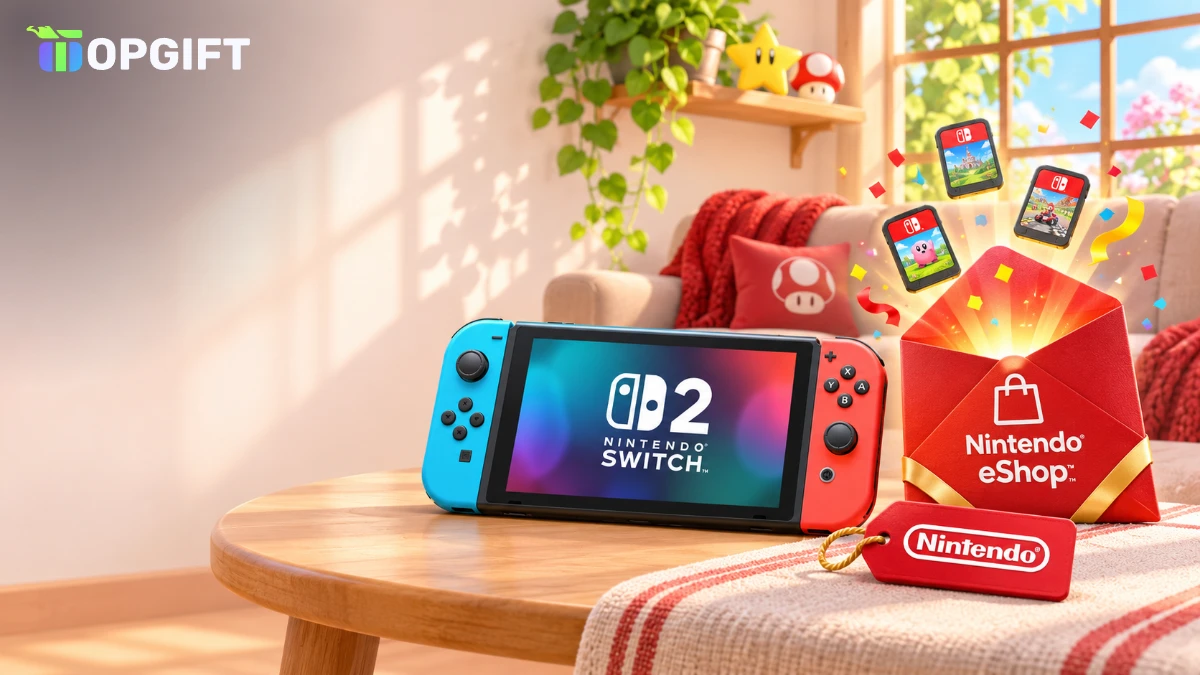
With the Switch 2 in millions of homes, the Nintendo eShop has become the main place to buy Nintendo games. Yet many players still do not have a bank card linked to their Nintendo Account, and plenty of parents prefer not to. A Nintendo eShop card solves both problems: it adds a fixed amount of money to the account, and that money pays for games, DLC and Nintendo Switch Online. Here is how it works on Switch 2 and the original Switch, how to choose the right one and how to make every euro or dollar count.
A Nintendo eShop Card in Plain Words
A Nintendo eShop card is a 16-digit prepaid code. Once you add it to a Nintendo Account, the value becomes eShop funds, a balance you can spend in the Nintendo eShop on Switch 2, on the original Switch and on Nintendo’s website.
Unlike a download code, which unlocks one specific game, the card is pure credit. In other words, you decide later what to buy, and you can split one card across several purchases. Any money you do not spend simply waits in the account for next time.
For example, a 50 card could cover a discounted adventure game, a DLC pack for a game you already own and a few months of Nintendo Switch Online. That flexibility is the main reason players choose a card over a single game code.
One account, both consolesSwitch 2 and the original Switch share the same Nintendo Account. So, funds added on one console are instantly available on the other.
Match the Nintendo eShop Card to Your Nintendo Account
Nintendo ties every account to a country, and eShop funds only work in that country’s currency. As a result, a UK card will not work on a German account, and a US card will not work on a Canadian one.
To check your country, sign in at accounts.nintendo.com and look at your profile, or simply open the eShop and note the currency next to the prices. Then pick the matching card. On TopGift, you can choose from 17 options:
Nintendo eShop cards on TopGift
If you live in the eurozone and your exact country is not listed, the EU card is usually the safe choice. Still, a card for your own country always gives the least room for mistakes.
Changing the country of an existing Nintendo Account is possible, but it is rarely worth it. Funds, pre-orders and memberships are tied to the original region, so a switch can leave money stuck in the old currency. Buying the right card from the start avoids all of that.
17 regions
Nintendo eShop Card
Add eShop funds to your Nintendo Account and spend them on Switch 2 and Switch games, DLC and Nintendo Switch Online.
Buy Nintendo eShop CardAdding Funds on Switch 2 or Switch
If your console is nearby, adding funds takes about a minute. The steps are almost identical on both generations of the Switch.
Add funds on the console
Alternatively, you can open your account information in the eShop, choose Add Funds and then select the option for a Nintendo eShop card. Both paths lead to the same result.
Typing on the touchscreen is usually faster than with the Joy-Con, so it helps to play in handheld mode for this step. On Switch 2, you can also use the larger screen and the mouse controls if you prefer.
Redeem a Nintendo eShop Card From Your Phone or PC
You do not need the console in your hands to add funds. Nintendo’s website accepts codes too, which is handy when you buy a card at work or want to send money to a child’s account from your phone.
Redeem on the website
Before you startNintendo only allows online redemption for accounts that have opened the Nintendo eShop on a Switch 2 or Switch at least once. On a brand-new account, open the eShop on the console first.
After redeeming, Nintendo sends a confirmation email to the address on the account. Keep it until you see the funds in the eShop.
Where eShop Funds Go
Funds cover almost everything sold digitally by Nintendo and by other publishers on the eShop:
- Switch 2 and Switch games, including pre-orders and upgrade packs for Switch 2 editions.
- DLC and expansion passes for games you already own.
- In-game currencies sold through the eShop, for example Fortnite V-Bucks on Switch.
- Nintendo Switch Online, for both Individual and Family memberships.
- Demos and free games cost nothing, but the eShop still needs a working account.
However, eShop funds stay inside the eShop. They cannot pay for hardware or merchandise in Nintendo’s physical online store, and they cannot be withdrawn or moved to another account.
One more detail: when you buy something that costs more than your balance, the eShop asks you to add funds first or to pay the full amount with another method. So, it helps to check the price and top up with the right card value before you check out.
Switch 2 Upgrade Packs and eShop Funds
Switch 2 plays most original Switch games, and many of them now have paid upgrade packs. These packs add Switch 2 features such as sharper graphics, higher frame rates or extra content, and they are sold in the eShop like any other DLC.
Because upgrade packs are digital add-ons, eShop funds pay for them directly. This is useful if you own a long list of Switch games and want to upgrade a few favorites without buying them again.
- Check first: open the game page in the eShop to see whether an upgrade pack exists.
- Look for free updates: some games, such as Minecraft, get Switch 2 improvements at no extra cost.
- Compare editions: sometimes the full Switch 2 Edition costs only a little more than the upgrade.
In short, a small eShop card is often enough to modernize the two or three games you play most.
Nintendo Switch Online With eShop Funds
Online play, cloud saves and the classic game library all require Nintendo Switch Online. Fortunately, you can pay for the membership with eShop funds, so a gift card covers it without a bank card.
In the eShop, open the Nintendo Switch Online page, choose the plan and length you want, and select your balance as the payment method. Alternatively, a ready-made membership code adds a fixed period directly, which is a good option if you only want the subscription.
There are two main plans. The Individual membership covers one account, while the Family membership covers up to eight Nintendo Accounts, which makes it the better deal for households with several players. Both can be upgraded with the Expansion Pack, which adds extra classic game libraries and selected DLC.

Individual and Family
Nintendo Switch Online Membership
Membership codes for online play, cloud saves and classic games. Choose your region and plan.
Buy Nintendo Switch OnlineIf you are not sure which plan fits, our article Nintendo Switch games, membership and gift cards explains what Nintendo Switch Online and the Expansion Pack actually add.
When a Game Key Beats eShop Funds
eShop funds are flexible, but they are not always the cheapest way to get one particular game. If you already know exactly which title you want, a digital game key can cost less than the eShop price.
The logic is simple. A key unlocks one game straight into your library, while funds can go anywhere. So, for a single known game, compare the key price first. For everything else, such as DLC, smaller indie games, memberships and impulse buys during a sale, funds are more convenient.
35 games
Nintendo Switch Games
Digital keys for Switch and Switch 2 games, from party favorites to big adventures.
Buy Nintendo Switch GamesNintendo eShop Card or a Linked Bank Card
You can of course link a credit card or PayPal to your Nintendo Account. So why do so many players prefer eShop cards? There are a few practical reasons.
- Privacy: no payment details are stored on the console or the account.
- Budget control: the account can only spend what you added.
- Shared consoles: family members cannot accidentally use a parent’s card.
- No bank card needed: students and younger players can still buy games.
On the other hand, a linked card is handy for automatic Nintendo Switch Online renewals. Many players therefore use both: a gift card for games and DLC, and a linked payment method only if they want the membership to renew by itself.
A First Shopping List for a New Switch 2
Just unboxed a Switch 2, or about to give one as a present? A single eShop card can set up the whole console. Here is a sensible order of priorities:
- Nintendo Switch Online first, because online play and cloud saves protect your progress.
- One big game, such as the new Zelda: Ocarina of Time remake, released on November 5.
- Upgrade packs for Switch games you already own, which unlock better graphics on Switch 2.
- Free upgrades where available, for example Minecraft on Switch 2.
- A small indie game to fill the gaps between big releases.
For more on these titles, read our Zelda Ocarina of Time remake guide and the article on Minecraft for Switch 2. Our list of the biggest games of November 2026 covers what else is coming.
If you received the console as a gift, also remember to transfer your data from the original Switch before you start shopping. That way, your existing games and saves appear on the new console, and you will not buy anything twice by accident.
Nintendo eShop Sales Work Differently
If you are used to Steam, Nintendo sales may surprise you. Nintendo’s own first-party games are rarely discounted heavily, while third-party and indie games often drop by half or more during eShop promotions.
Therefore, the best strategy is to keep a wishlist in the eShop and wait for seasonal events, such as the Black Friday and holiday sales. Loading funds before those events lets you buy the moment prices drop. Our overview of Black Friday 2026 gift card deals shows what to expect this year.
Also, keep an eye on the end date of each deal, which the eShop shows on the game page. Prices return to normal at midnight, so it is better to buy on the last day than to miss it.
Spending Limits for Children
An eShop card is one of the safest ways to give a child a gaming budget. Since the money is fixed, there is no risk of a surprise bill, and nobody needs to store a bank card on the console.
- Use a family group: add the child’s Nintendo Account to your family group at accounts.nintendo.com.
- Restrict spending: in the child’s account settings, you can limit or block eShop purchases.
- Add funds remotely: redeem the card on the website while signed in as the child.
- Use Parental Controls: the free mobile app limits play time and age ratings on the console.
As a result, the child can browse and buy within the budget you set, and you can see what they spend. This works equally well for younger players on the original Switch and for teenagers on Switch 2.
Many parents also use a simple rule: the child receives a small eShop card each month or for good school results. This teaches budgeting, and the child quickly learns to compare prices and wait for sales instead of buying the first thing they see.
Giving a Nintendo eShop Card as a Gift
A Nintendo eShop card is a classic present for birthdays and holidays, especially for someone who just got a Switch 2. Since the recipient chooses the games, you do not need to know which titles they already own.
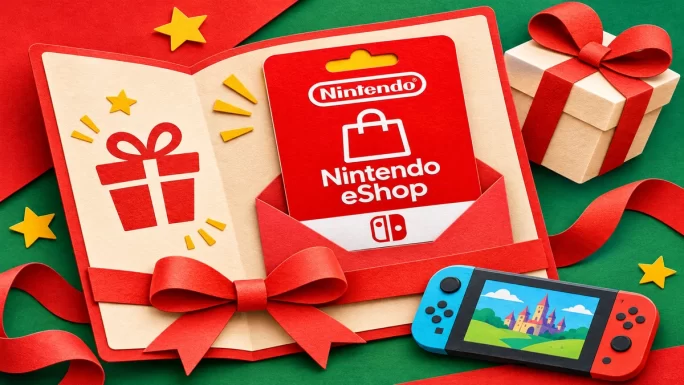
Before buying, find out which country their Nintendo Account uses. Then choose a value that fits the occasion, from a small card for an indie game to a larger one that covers a full release plus Nintendo Switch Online.
- Print it: write the code inside a greeting card for a more personal touch.
- Pair it: combine the code with a Switch 2 or a physical accessory.
- Explain it: add the redeem link, so the recipient knows where to enter the code.
Because the code arrives within minutes, it also works as a last-minute gift. For more ideas, see our best gifts for gamers.
Keeping Your Nintendo Account Safe
Your Nintendo Account holds your games, your saves and your eShop balance. Therefore, it is worth spending a minute on security.
- Turn on 2-step verification in your Nintendo Account settings.
- Use a unique password that you do not use on other sites.
- Ignore free eShop code offers, which are almost always scams or phishing pages.
- Keep codes private until they are redeemed, since anyone can use an unused code.
Also, only sign in on accounts.nintendo.com or ec.nintendo.com. If a message asks you to log in through another address, close it, because Nintendo never asks for your password by email or chat.
Nintendo eShop Card Problems Solved
Most failed redemptions come down to a few simple causes. Here is what to check, in order:
- Code not accepted: check that you entered all 16 digits, ideally by copying and pasting.
- Region error: the card must match the country of your Nintendo Account.
- Website will not redeem: open the eShop on the console once, then try again online.
- Code already used: check other Nintendo Accounts in your household.
- Balance not showing: close and reopen the eShop, or restart the console.
If none of this helps, contact TopGift support with your order number and a photo or screenshot of the error. We will check the code and help you resolve it.
It also helps to know what not to do. Do not keep retrying the same code many times in a row, because the eShop may temporarily block further attempts. Instead, wait a little, check the details above and try once more.
Frequently Asked Questions
Yes. Switch 2 uses the same Nintendo eShop and Nintendo Account, so the card works on both Switch 2 and the original Switch.
Yes. Go to ec.nintendo.com/redeem, sign in and enter the code. The account must have opened the eShop on a console at least once.
Yes. Choose your eShop balance as the payment method when you buy an Individual or Family membership.
Use the card for your own country, or the EU card for most eurozone accounts. UK and Polish accounts need their own cards.
No. Funds stay on the Nintendo Account where you redeemed the code and cannot be transferred or withdrawn.
A Nintendo eShop card code has 16 digits.
Key Takeaways